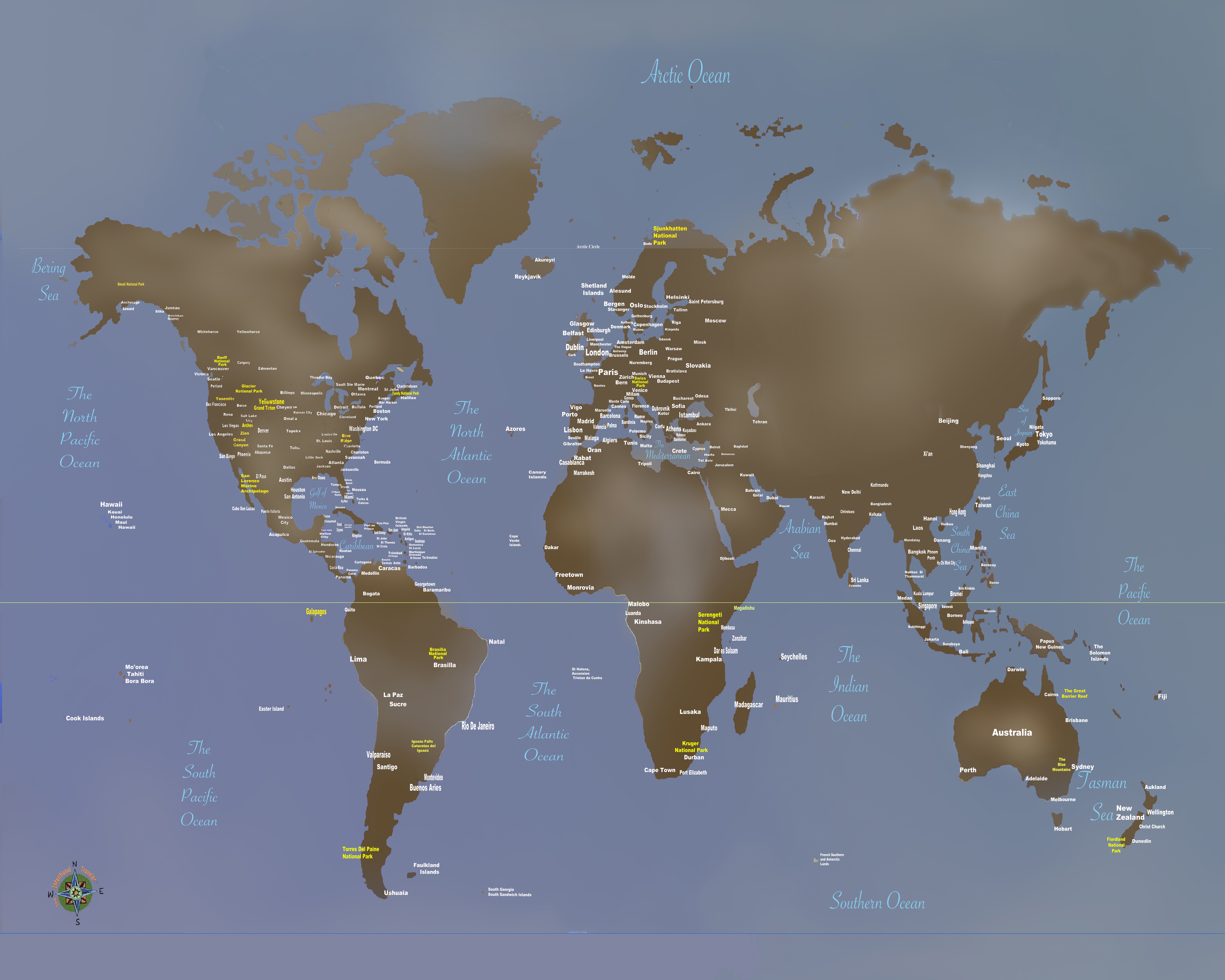


What, you don’t have a pin map? Well, let’s fix that…
If you love travel, keeping a travel pin map is a great way to keep track of where you’ve been while also a fantastic decorating accent. We started ours years ago and even today it is a fantastic conversation piece.
Years ago we started getting requests from family and friends to make one for them. It became a favorite gift item and after a few dozen maps we decided we’d try selling them online.
We started selling on Etsy with a few world map color versions and added a United States map. We offered a selection of titles and provided personalization included (all our friends and relatives wanted theirs personalized). Within a couple of months sales took off and soon I was spending hours printing and shipping maps. A few dozen a week wasn’t going to make me rich but it was eating up a lot of my week. After about six months I shut it down because it was just too much work…
After a lot of prodding we’ve decided to put in some more time exploring our travel pin maps again. After talking to a number of friends about the process and discussing options we’ve started developing a plan.
This time we’re using a do-it-yourself approach and if you follow our steps you’ll have a decorating accent to be proud of!

Making Your Custom Travel Pin Map
Here’s how to create your very own custom 16×20″ pin map for under US$50 in five simple steps:
- Get our pin map at Etsy HERE* (Please note that for a few of weeks our Etsy shop is on vacation – so we’re making our visitors a special limited time offer*.
*While we are traveling you can download our pin map for FREE instead of buying it on Etsy.

- Print it up to 16×20″ At Walmart or Office Depot
- Pick out a standard 16×20 frame
- Remove glass in frame and back up with a sheet of foam board
- Get a set of map push pins
Do It Yourself Instructions For Our Travel Pin Map
Download Our Map And Make It Your Own

Customizing Your Map
Microsoft
Microsoft offers several software tools and services that can be used for annotating our JPG map file that include:
Our files are formatted in a 4:5 ratio that will produce prints from 4×5” through 16×20” and are provided in an open jpg file format that can be customized using many standard applications in computers using MS, Apple and Google operating systems by following the steps outlined here.
• Microsoft Paint: A basic image editing program included with Windows that allows users to add simple annotations such as text, lines, and shapes to images.
• Microsoft Office Picture Manager: A more advanced image editing program that comes with Microsoft Office and provides more features for annotating images, including the ability to add captions, watermarks, and other effects.
• Microsoft OneNote: A digital note-taking application that allows users to insert and annotate images, including JPG files.
• Microsoft SharePoint: A cloud-based collaboration platform that allows users to store, share, and annotate images, in JPG files.
Apple Macintosh
Using the Preview application:
• Open the JPG image in Preview.
• Click the “Markup Toolbar” button in the toolbar.
• Select the annotation tool you want to use, such as the “Text” tool, “Shape” tool, or “Arrow” tool.
• Click and drag on the image to create your annotation.
• Adjust the properties of the annotation, such as font, color, and size, using the options in the Markup Toolbar.
• Save the finished file for printing.
Google Operating Systems
With a Google computer using Google Cloud, This system offers a comprehensive platform for image annotation. It provides a suite of tools and services that enable users to annotate JPG images efficiently and accurately providing powerful image editing tools that facilitate the annotation process. Users can easily draw bounding boxes around objects, add polygons, or even create 3D annotations. These tools ensure precise and consistent annotation, which is essential for high-quality machine learning models.
Printing Your Map
If you have access to a printer that can print to a sheet size of 13×19 you can print your map yourself at either 11×14 (standard frame size) or use 13×19 paper trimmed to 13×16.
Large prints can be ordered from a number of sites including Office Depot and Walmart. If you have a wide format (13×19) you can of course print it yourself.
Print yours with Walmart Custom Prints. The 16×20” print is the best format at under $14.00 and the order can be placed with your local Walmart online at the web page below.
Click Walmart Link HERE
Framing Your Map
Our maps when printed can be formatted to fit a 16×20” standard size frame, or 11×14”, 8.5×11” and 8×10”that are available nationwide from many stores like Michaels or Walmart as well as online. In order to convert the frame to a pin map all need to do is to remove the plastic or glass front, back up the map with a sheet of foam board and reassemble. See a good choice from Michaels HERE.
Pushpins
Hopefully you’ll be adding a lot of pins to your map and while you can find push pins in most office supply departments we recommend a smaller headed shorter pin made for that purpose and recommend Yalis Push Pins 600-count Map Tacks available from Amazon HERE.
 The Intentional Travelers