
From Rome to Rio to Rochester, we all get our directions to where we want to go using our cell phones. Driving, walking and using public transportation those maps are a modern day miracle. But what if we could actually preplan a tour before visiting a city? We can, and it’s easier than you would think…
Please Note: This is focused on using an Android phone and Google Maps. Apple has a similar system for navigating based on current location, but I’m not sure about the details of creating custom maps*.
Take a little time before your next trip and create your own city walking tour.
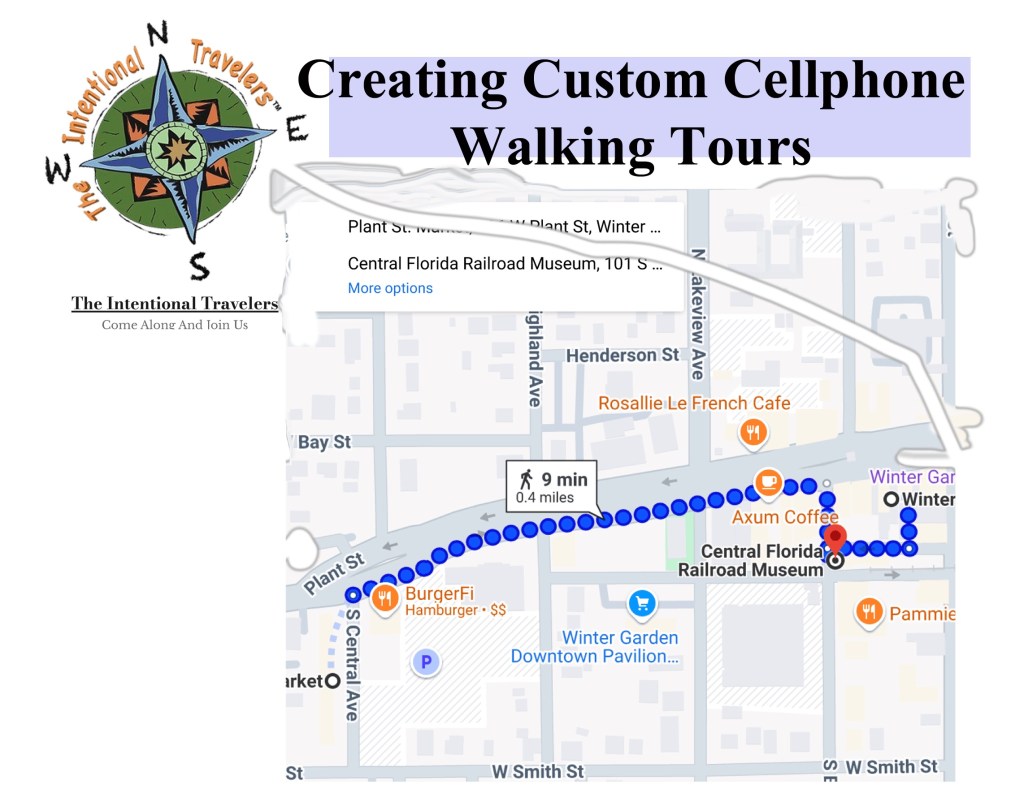
It’s actually rather easy to plan a walking tour (biking and public transportation as well) using Google maps. Pick a destination and make a list of the places you want to visit (Google can help with that too) and get started creating your itinerary using Google maps.
Google My Maps Or Google Maps
Google Maps is your choice because it is primarily designed for real-time navigation and providing directions. Google My Maps is aimed at creating and sharing customized maps tailored to individual and business needs.
The real problem is that Google My Maps cannot be used for real-time navigation on your phone. It’s intended to allow users to add individual points, draw shapes, and create layers, enabling better personalization. Often it’s used on business web pages to show a location or specific itineraries. It also has specific limitations, such as having a maximum of 10 layers and 50,000 total points for lines and shapes, which may restrict extensive customizations.
Creating Custom Walking Tours Using Google Maps
Above is a quick walking tour I created for major historic sites in Rome. It was emailed to my phone and later opened using Google Maps by clicking the emailed link. In Rome it opened showing my current location and added directions to the first site.
Almost everyone is using cellphone maps to navigate these days. From directions to the nearest gas station or to the location of a specific address. From Amsterdam to Paris to Taiwan cell phones are an indispensable travel companion. But with just a little planning you can also set your phone up to become your own individual tour guide while visiting a new city.
A Quick Course In Setting Up Your Own Walking Tour Using Google Maps
Before starting you need to have a registered account with Google.
Using a tablet or computer, open Google in your browser and navigate to Google Maps. A direct link would be <maps.google.com> on your computer or tablet. Using a smart phone open the Google Map App (you can download for free).
When you open Google Maps, you’ll be greeted with a map of your current location and your account icon in the upper right corner. If you’re using a smartphone, make sure your GPS is turned on for accurate directions and for computers you’ll need show my location enabled in the browser.
On Google Maps search for your destinations of interest by typing the destination name or address into the search bar and press enter.
Once you’ve found your destination, you’ll see it highlighted on the map. You can zoom in and out to get a better view of the area. At the creation stage it doesn’t matter what your current location is. You’re creating a map for future use.
Next choose the ‘Directions’ button which is usually displayed as an arrow icon. After clicking the ‘Directions’ button, you’ll see different transportation options, including driving, public transit*, and walking.
For this demonstration select the ‘Walking’ icon which looks like a person walking. Google Maps will select the best walking route based on sidewalks and paths for walk-friendly routes.
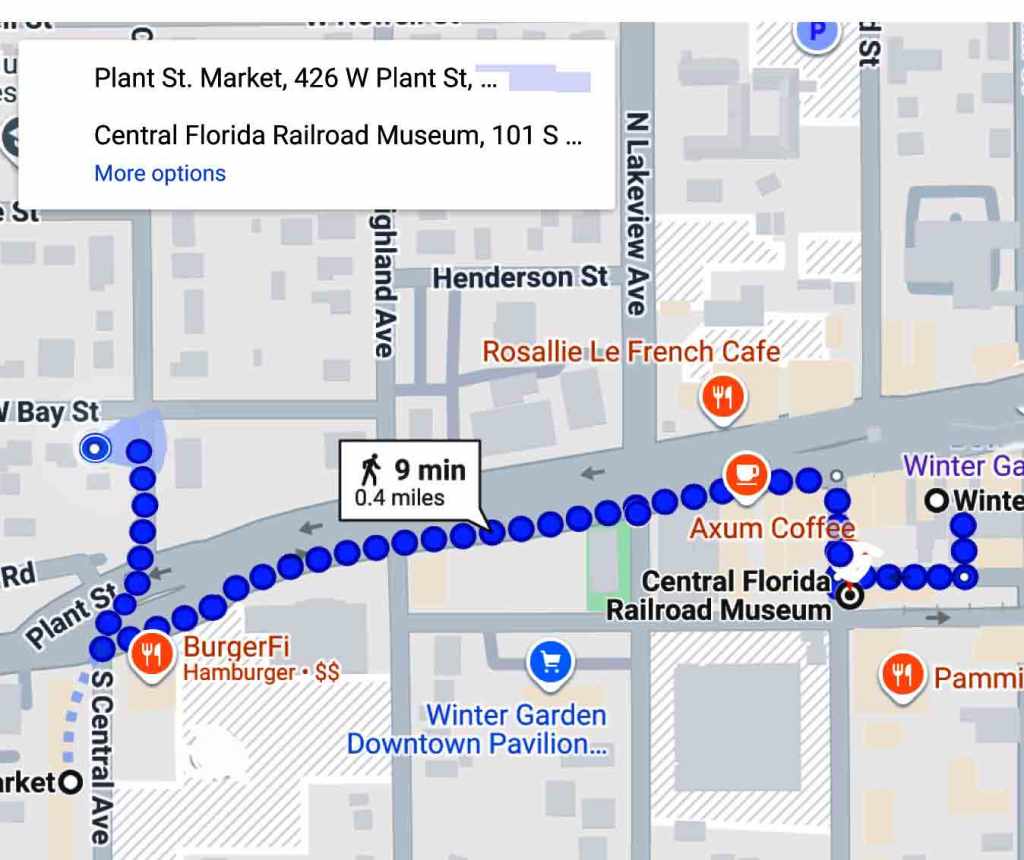
This is a quick example in our hometown going from our house to the Railroad Museum
Next customize your directions by clicking on ‘Add destination’ and enter an item. It can be as simple as the name of a local landmark, a restaurant of interest or an actual address. Your first “Destination” will become your starting point.
Now you can add any number of multiple stops along your walking route, by clicking on ‘Add destination’ again and again. As you proceed, a list will appear on the left side of the map. You can rearrange the list at any time, delete items and add new ones. This feature is excellent for planning a day of sightseeing or hiking way before you get there.
As you complete these steps, Google Maps will display your customized walking route, along with the estimated time it will take to complete the walk between landmarks.
You will need to save your map and there are a number of options, but the most direct is to copy the link from the pull-down menu at the left side and paste it on a text app for future use. If you haven’t created the map on your cell phone the other option is to email it to your phone. Clicking the map name in the email opens your custom Google Map in your cellphone.
This is an emailed map of simple directions in our hometowm
Once you’re at your travel destination you can open the emailed map and activate your current location to begin your walking tour.
Include Public Transportation In Your Directions

Picking a tour that’s too long to walk? Google has you covered. Often overlooked when navigating using Google Maps is the public transportation option. Selecting this option in directions removes the hassle of trying to figure out what bus to take and what bus stop to use. Google Maps will direct you to the proper stop, indicate what bus number to take and actually when to get off.
Tips For Navigating With Your Cellphone
Looking at your phone the iconic blue beam points the way you’re facing like a flashlight beam. The size of the beam also tells you how accurate your phone’s direction is at any given time. The narrower the beam, the more accurate the direction. The wider the beam, the more likely it is that your your phone’s compass is somewhat uncalibrated, which means that its sensors aren’t working as they should. This can happen because your phone needs charging, you’re walking near metal or something is interferring with the phones signals.. Any time this happens simply move your phone in a figure 8 motion a few times. This should result in a more accurate direction.
Battery life can also be a concern, especially if you’re out all day. Two things stress the battery. First is constantly consuming data through Google Maps and the second is updating GPS locations. If the battery is a concern you can either switch to app off regularly. The map will simply update when back on. The other option is to download the map and keep data off. GPS will still reference the downloaded map unless you get out of the maps area.
Walking Tours, There’s An App For That.
GPSmyCity is currently the most popular and it literally has thousands of city walking tours to pick from. It hase a wide assortment of options from major attractions, to pub crawls to art and museum tours. It gets good reviews and is straight forward in navigation to the city’s attractions. While it dies have detractors the two biggest negatives are it isn’t free and it consumes a lot of data. Many tours are really large files. The app does come with a 3 day free trial.
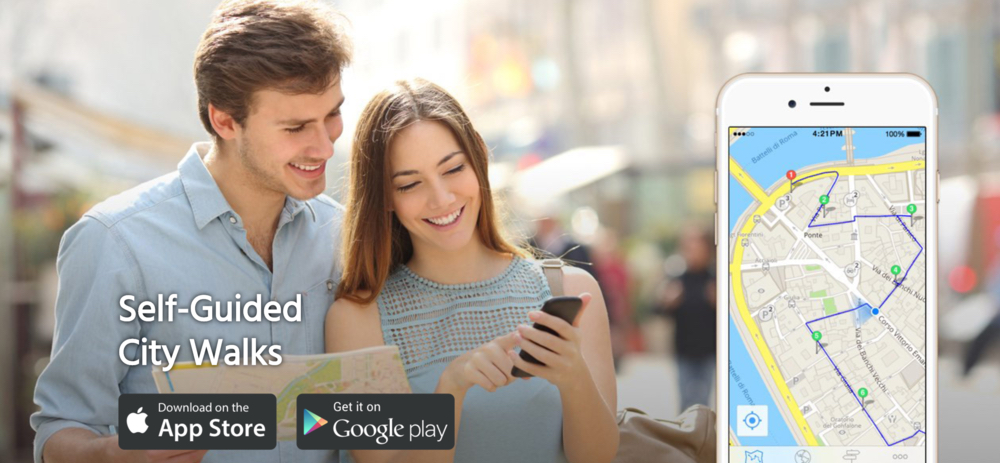
GPSmyCity App – This app offers thousands of self-guided walking tours along with offline maps for over 1,500 cities globally, turning your device into a personal tour guide. source
izi.TRAVEL – Another top-rated app that enhances walking tours with rich multimedia content and personalization options, ideal for tourists and history buffs looking for a tailored experience.
Other self-guided cellphone based tours to consider include:
- PocketSights
- STQRY Guide
- TripScout
- Rick Steve’s Audio Europe
- GeoTourist
*Our daughter-in-law is an avid Apple user and we were really impressed with how she navigated Valencia, Spain during a recent trip. Her iPhone gave her constant updates on getting to a bus stop, what bus number to take, where to exit along with walking directions. I ‘m asking her to review this article and provide notes specific to iPhones. More soon…
 The Intentional Travelers